
Introduction
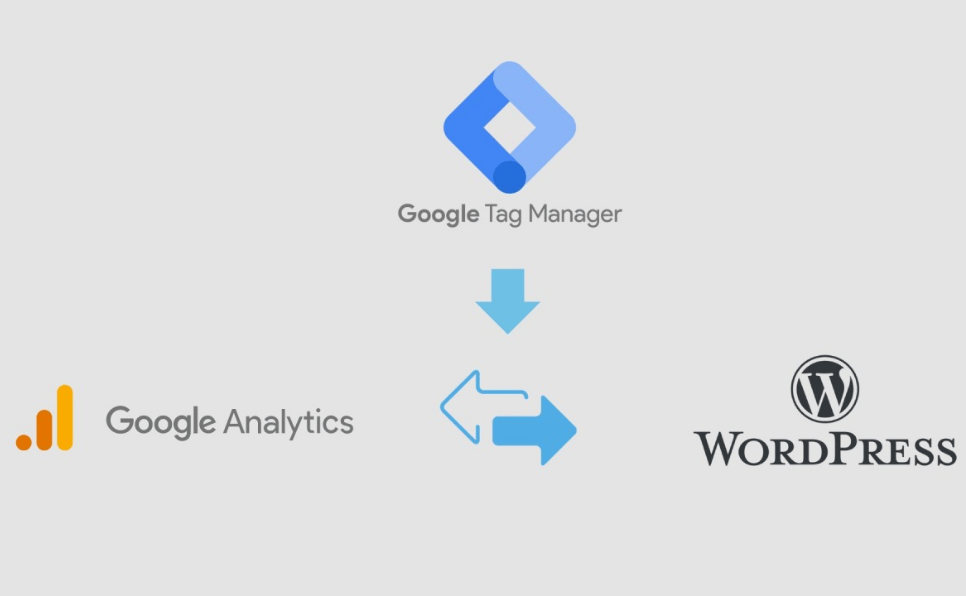
Integrating Google Analytics 4 (GA4) with your WordPress site through Google Tag Manager (GTM) offers a streamlined and efficient way to manage your website’s analytics. This setup allows for easier updates, better data control, and enhanced tracking capabilities. In this guide, we’ll walk you through the step-by-step process to achieve this integration.
Step 1: Create a Google Tag Manager Account
-
Visit the Google Tag Manager website and sign in with your Google account.
-
Click on “Create Account”.
-
Enter your Account Name (typically your company or website name).
-
Set up a Container for your website:
-
Container Name: Enter your website’s name.
-
Where to Use Container: Select Web.
-
-
Click “Create” and accept the terms of service.
-
You’ll be provided with two snippets of code:
-
Head: Copy and paste this code immediately after the opening
<head>tag on every page of your site. -
Body: Copy and paste this code immediately after the opening
<body>tag on every page of your site.
-
Step 2: Add GTM Code to Your WordPress Site
You have two primary methods to add the GTM code to your WordPress site:
Method 1: Using a Plugin
-
In your WordPress dashboard, go to Plugins > Add New.
-
Search for “Insert Headers and Footers”.
-
Install and activate the plugin.
-
Navigate to Settings > Insert Headers and Footers.
-
Paste the Head code provided by GTM into the Scripts in Header section.
-
Paste the Body code into the Scripts in Body section.
-
Click “Save” to apply the changes.
Method 2: Manually Editing Theme Files
-
In your WordPress dashboard, go to Appearance > Theme Editor.
-
Select the header.php file.
-
Paste the Head code immediately after the opening
<head>tag. -
Select the footer.php file.
-
Paste the Body code immediately after the opening
<body>tag. -
Click “Update File” to save your changes.
Note: If you’re using a child theme, ensure you’re editing the child theme’s files to prevent losing changes during theme updates.
Step 3: Set Up GA4 in Google Tag Manager
-
Log in to your GTM account.
-
Select the container you created for your website.
-
Click on “Tags” in the left-hand menu.
-
Click “New” to create a new tag.
-
Click on “Tag Configuration” and select “Google Analytics: GA4 Configuration”.
-
Enter your GA4 Measurement ID:
-
In your GA4 property, go to Admin > Data Streams > Web.
-
Select your web stream and copy the Measurement ID.
-
-
Under Triggering, select “All Pages” to fire the tag on every page.
-
Click “Save” to save the tag.
Step 4: Publish Your Container
-
In GTM, click on “Submit” in the top-right corner.
-
Add a version name and description (e.g., “Initial GA4 Setup”).
-
Click “Publish” to make the changes live on your site.
Step 5: Verify the Integration
-
Visit your website in an incognito or private browsing window.
-
Use the Google Tag Assistant Chrome extension to verify that the GTM container is firing correctly.
-
In GA4, go to Real-time reports to see if your visit is being tracked.
Conclusion
By following these steps, you’ve successfully linked your WordPress site with Google Analytics 4 via Google Tag Manager. This integration provides a robust framework for tracking and analyzing user interactions on your site, enabling data-driven decisions to enhance user experience and business outcomes.