Introduction
Tired of manually searching for business leads on Google Maps? In this tutorial, we’ll show you how to automate company data scraping from Google Maps using n8n, Apify, SerpApi, and ChatGPT.
You’ll get a fully automated workflow that finds business information, extracts website content, and saves everything directly into Google Sheets — all without writing a single line of code!
Keywords: lead generation automation, Google Maps scraping, n8n tutorial, Apify, SerpApi, ChatGPT API, business data extraction
Step 1: Create the Required Accounts
Before starting, you’ll need a few free tools to make everything work together:
- n8n Account – Visit n8n.io and sign up. You’ll get a 14-day free trial with access to all features.
-
Apify Account – Go to apify.com and create a free account. You’ll use this to run web scraping tasks.
-
SerpApi Account – Sign up at serpapi.com to get your free Google Search API key.
-
ChatGPT Account – Log in to platform.openai.com and create an API key for ChatGPT (used in your workflow).
Pro Tip: Keep all your API keys handy — you’ll paste them into n8n later.
Step 2: Import and Configure the Lead Generation Workflow in n8n
-
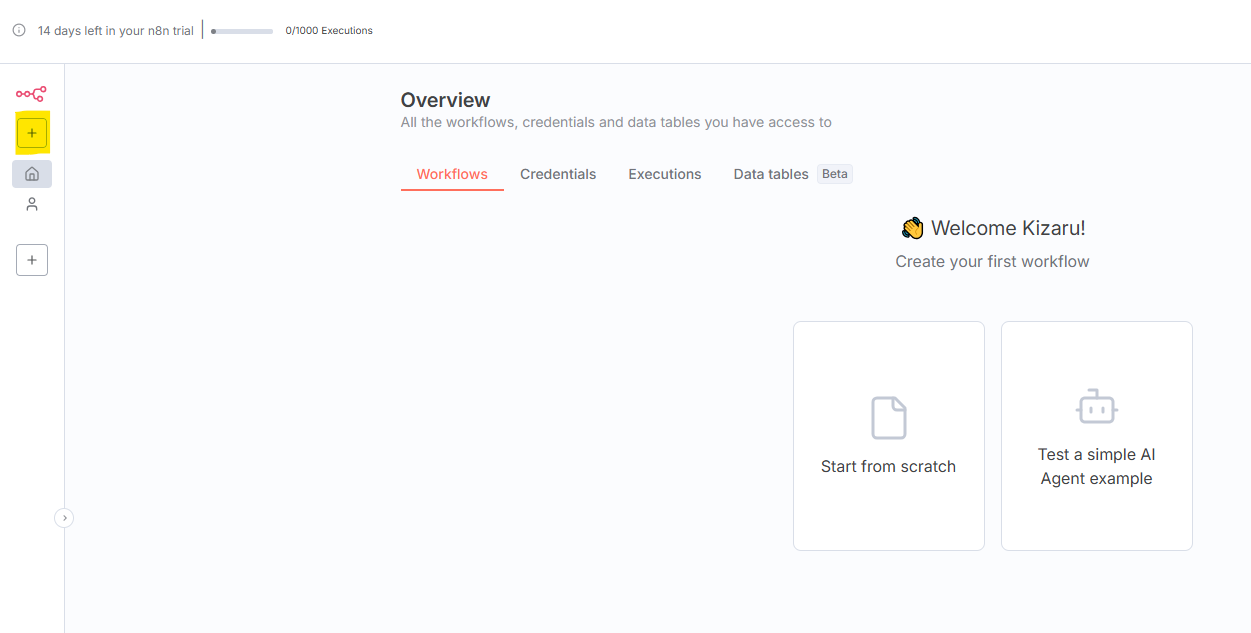
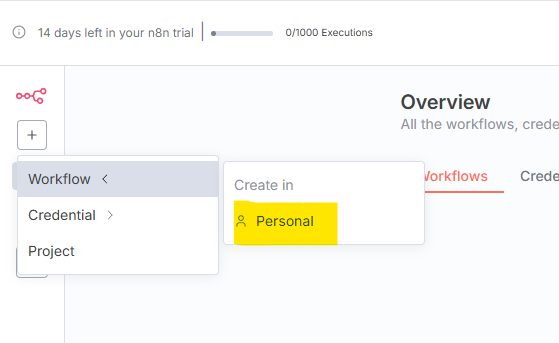
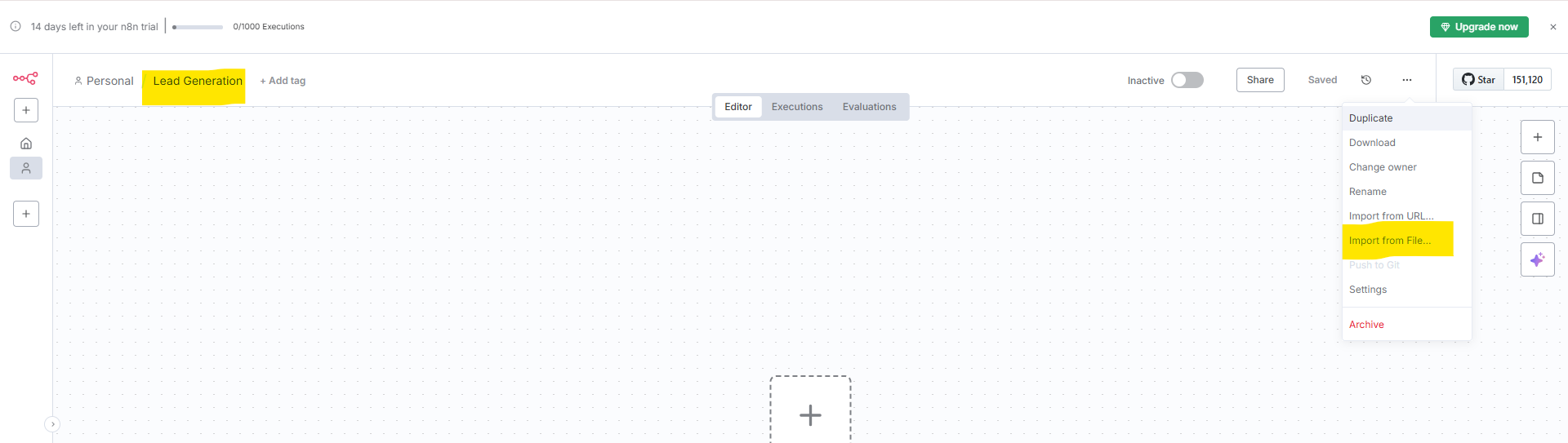
Once logged into n8n, click “New Workflow” and name it Lead Generation. (Click to download the JSON file.)
-
Import the workflow (as shown in the screenshots).
-
Connect SerpApi:
-
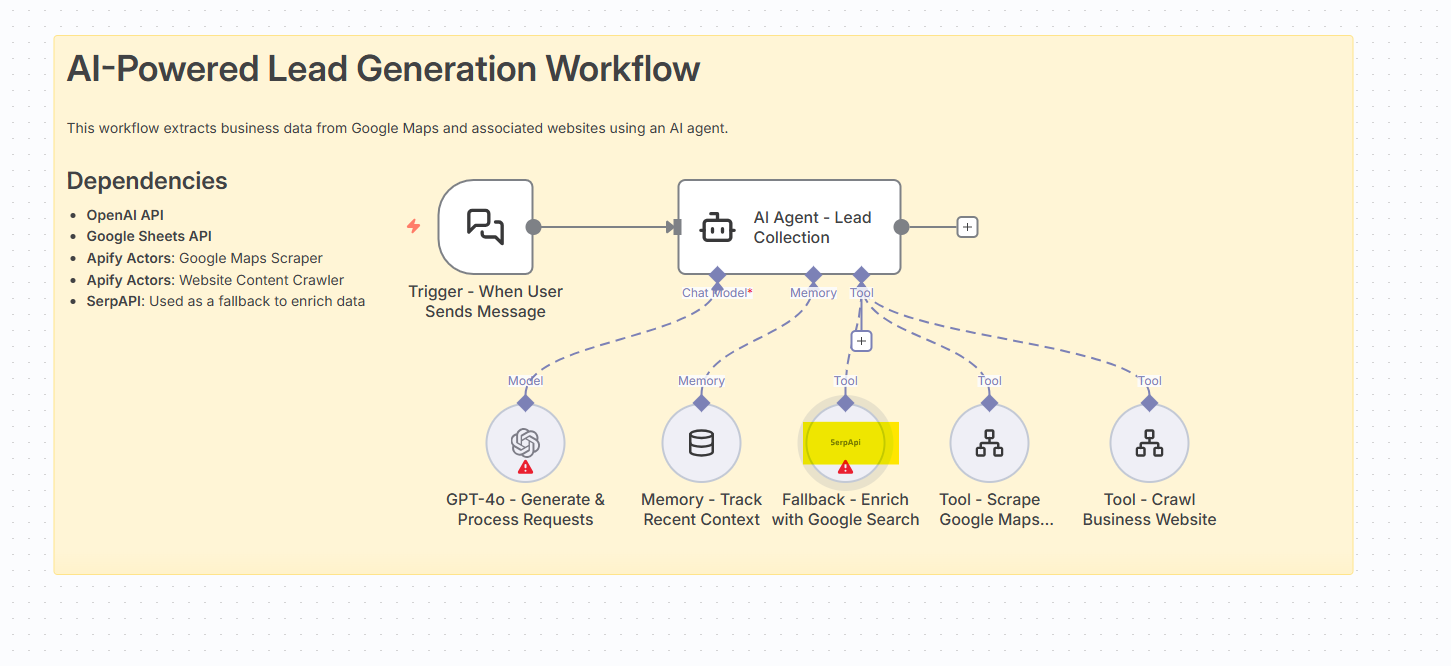
Double-click the SerpApi node.
-
-
-
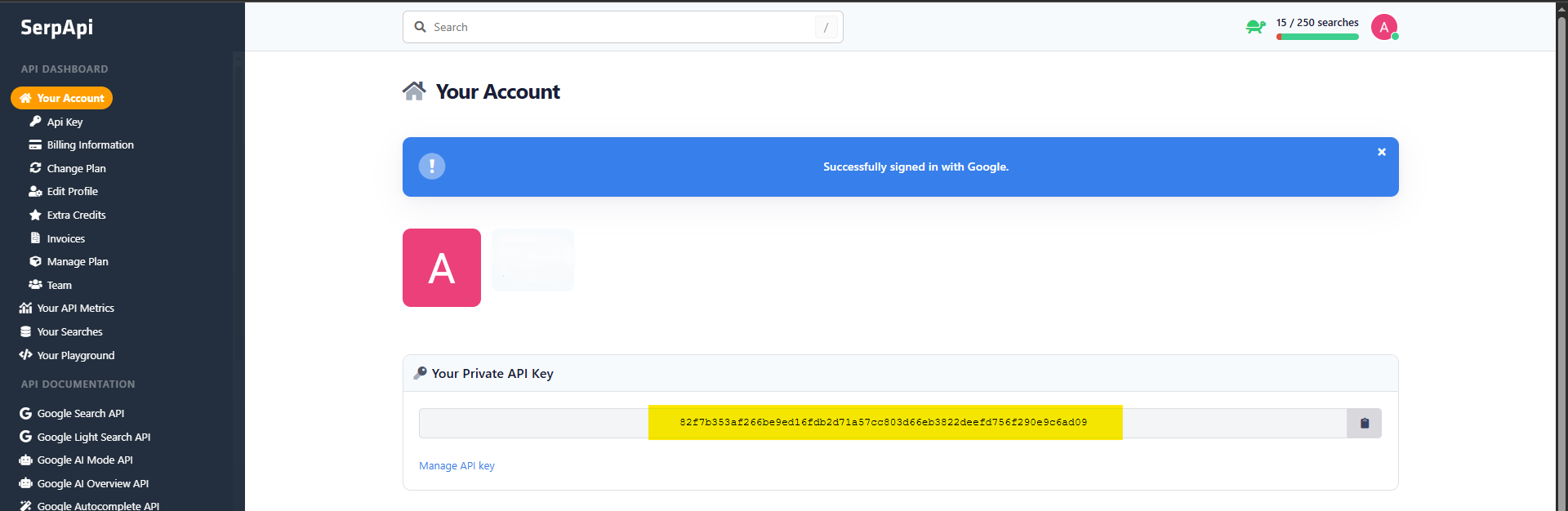
Go back to your SerpApi dashboard → copy your API key.
-
-
-
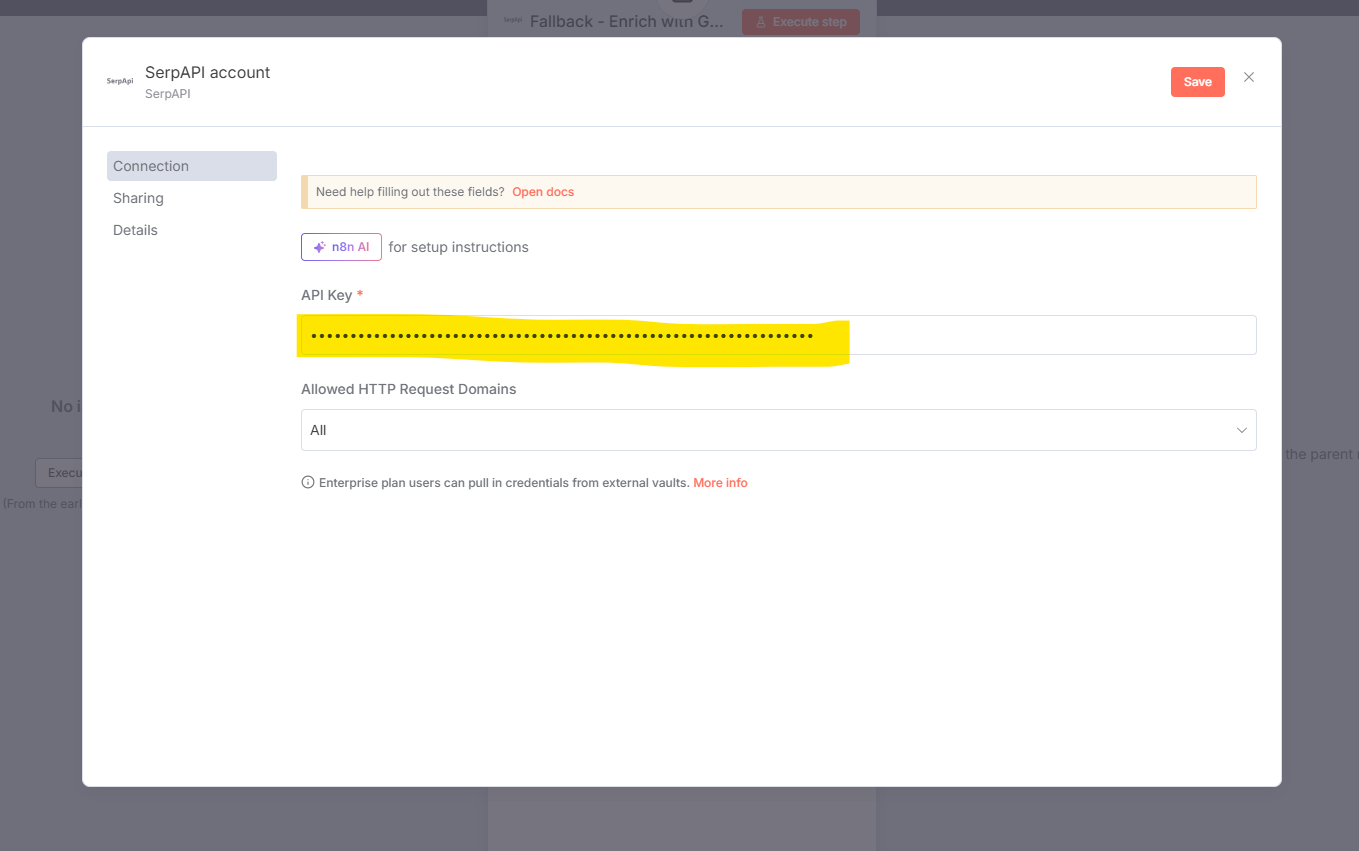
Paste it in the API Key field and click Save.
-
-
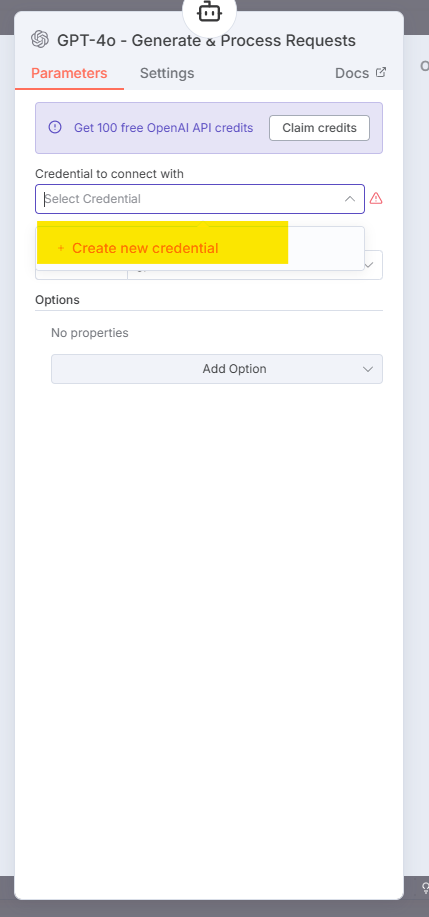
Connect ChatGPT:
-
Double-click the ChatGPT node.
-

-
-
Select “Create New Credential”.
-
-
-
Paste your OpenAI API key and save it.
-

You’ve just linked n8n to both SerpApi and ChatGPT.
Step 3: Configure the Google Maps Extractor Sub-Workflow
-
Create another new workflow in n8n and name it extract_google_maps_FR. (Click to download the JSON file.)
-
Import the subworkflow file (same method as before).

-
Connect Apify:
-
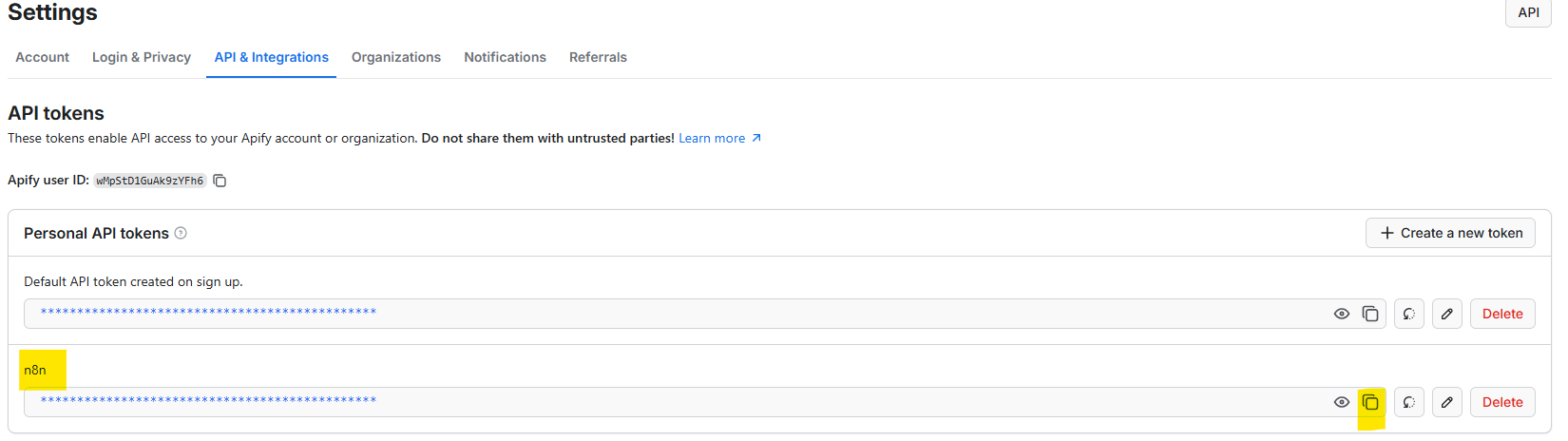
Go to Apify → Settings → API & Integrations.
-
Create a new token (you can name it “n8n”) and copy it.
-
-
-
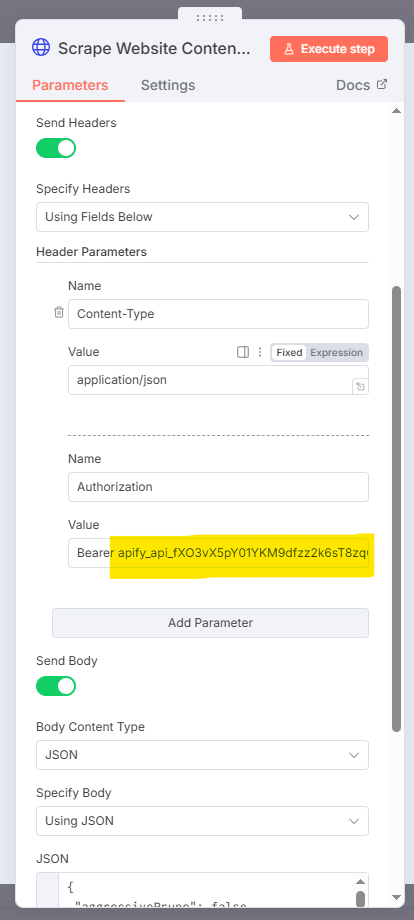
In n8n, double-click the Scrape Google Map node.
-

-
-
Scroll to the Value field and paste your token under
"Bearer"(see screenshot).
-
-
Connect Google Sheets:
-
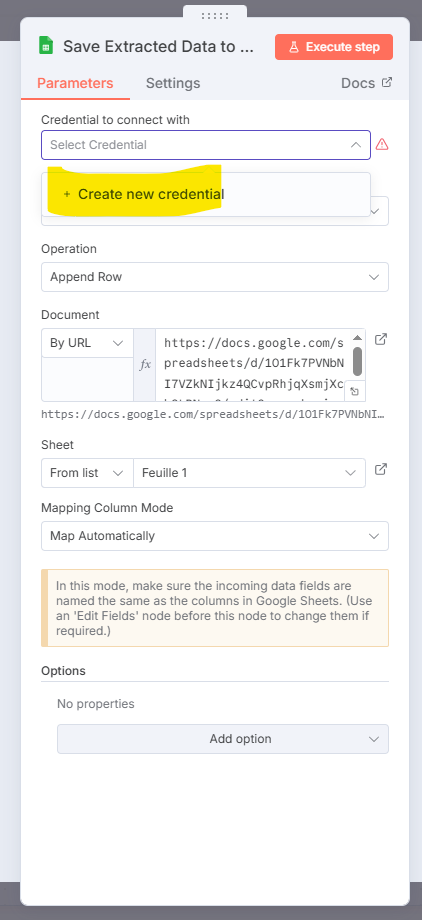
Double-click Save Extracted Data to Google Sheet.
-

-
-
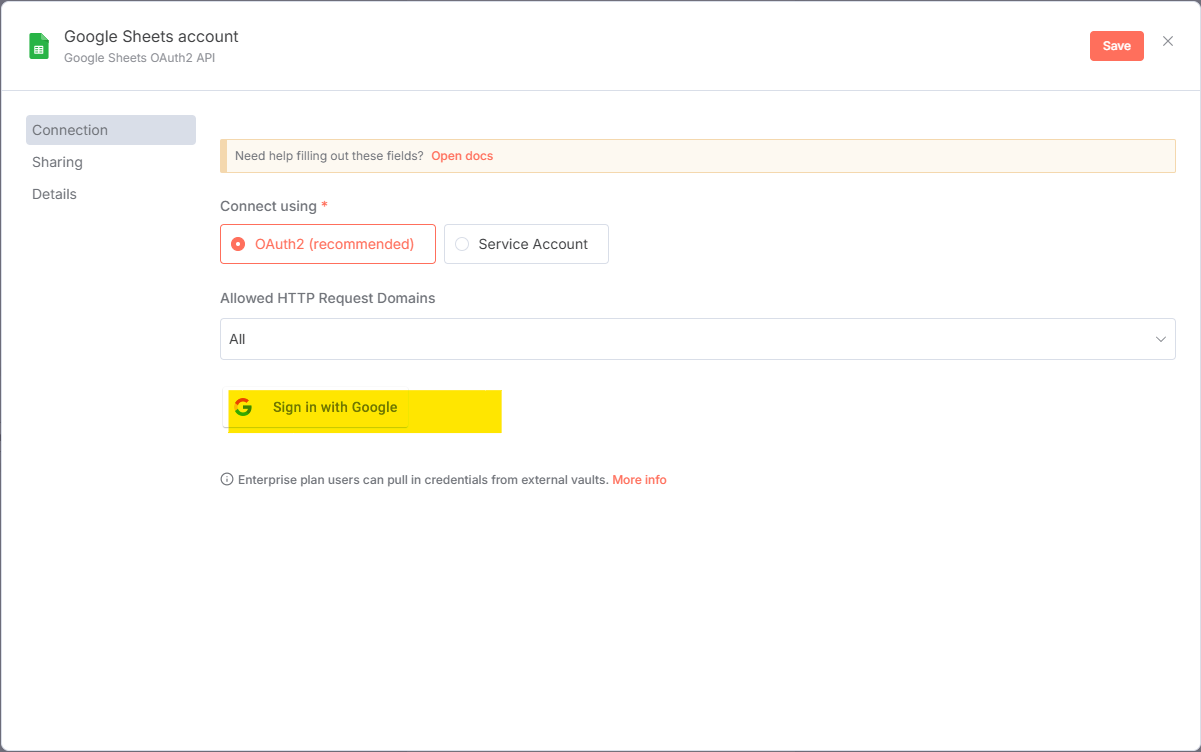
Click Create New Credential → Sign in with Google.
-
-
-
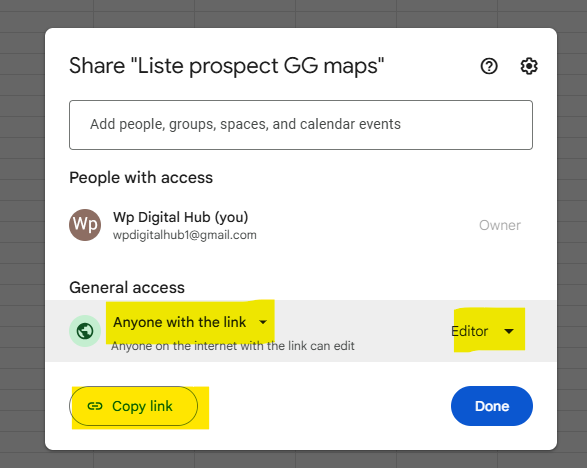
Create a new sheet named Scraped Data.
-
In Google Sheets → share → change access to “Anyone with link” → Editor.
-
-
-
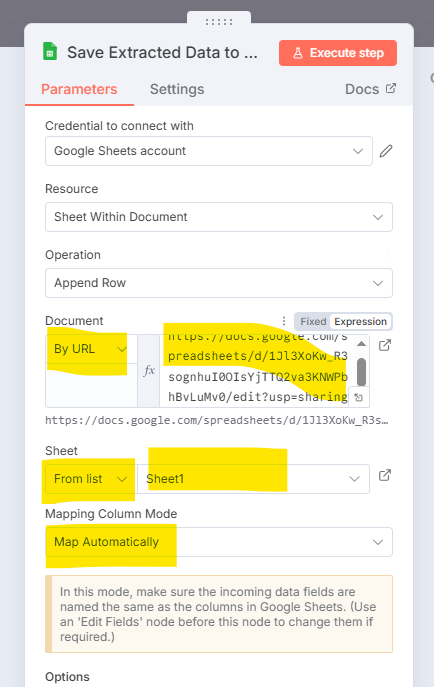
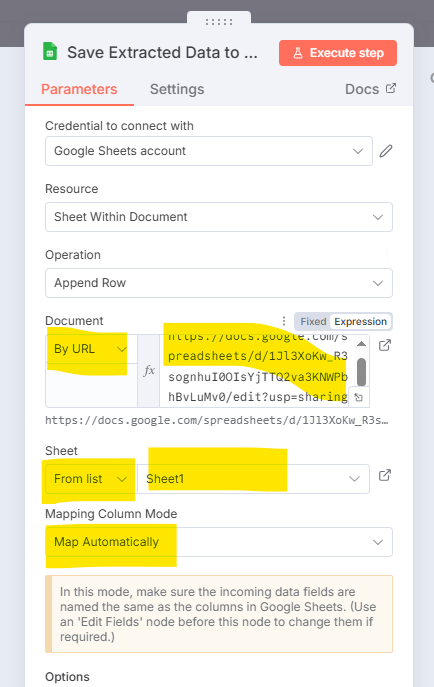
Copy the shareable link and paste it back into the Document URL field.
-
Select
Sheet1, enable Map Automatically.”
-
Step 4: Add the Website Content Crawler Sub-Workflow
-
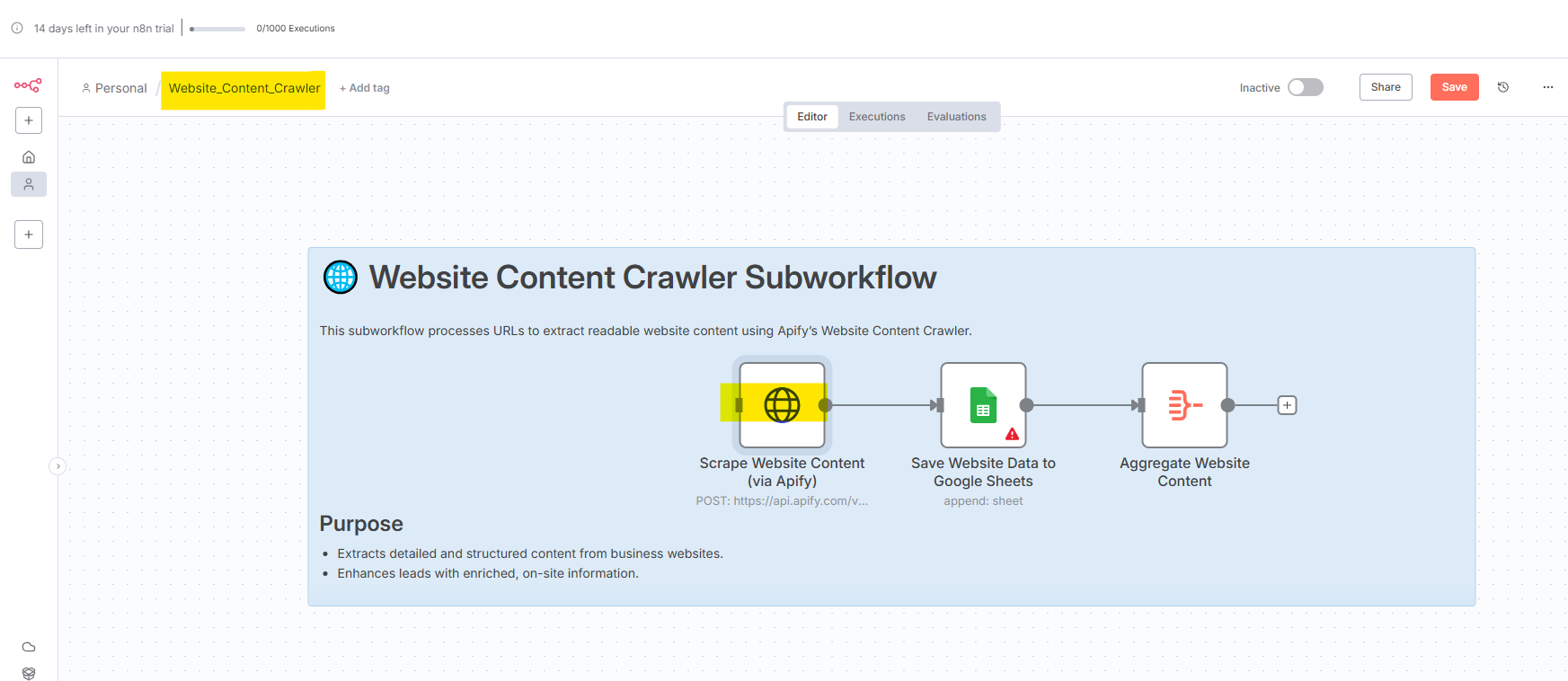
Import the final workflow and name it Website_Content_Crawler. (Click to download the JSON file.)
-
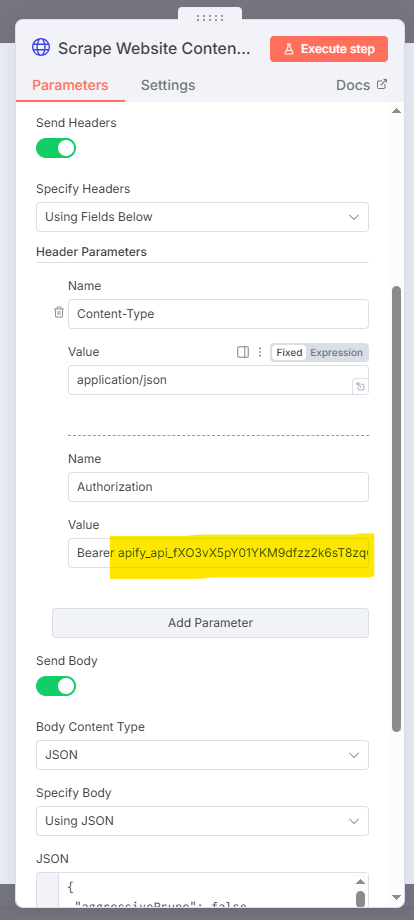
Scrape Website Content:
-
Double-click the Scrape Website Content node.
-
-
-
Paste your Apify API key into the Value field.
-
-
Save Website Data to Google Sheets:
-
Double-click the Save Website Data node.
-
Paste the same Google Sheet link.
-
Select
Sheet1, map automatically.
-
Step 5: Execute Your Automated Lead Generation System
Now it’s time to bring it all together!
-
Return to your Lead Generation workflow in n8n.
-
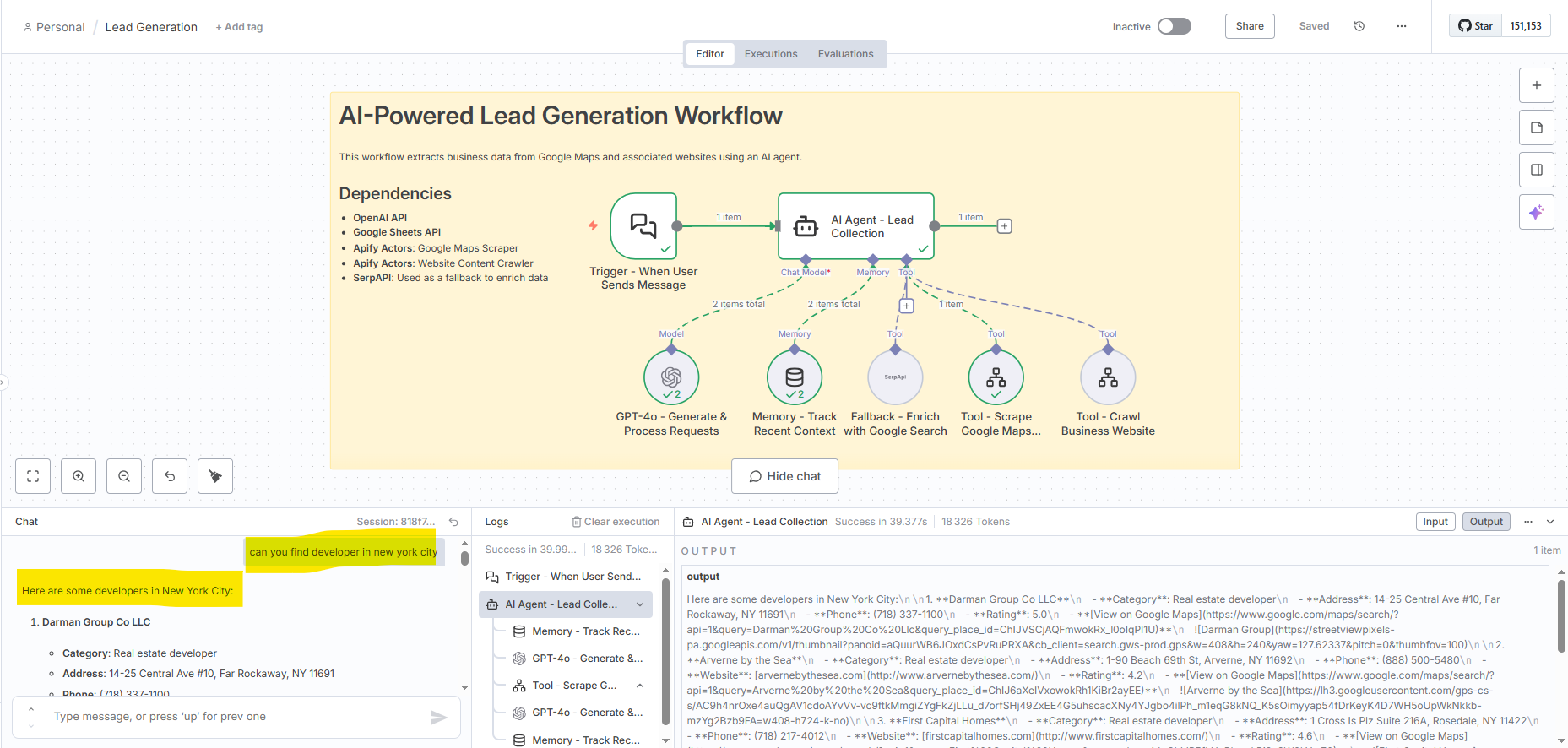
Click “Open Chat” and type a query such as:
“Can you find developers in New York City?”
-
Your automation will:
-
Search Google Maps for relevant companies
-
Extract contact details, websites, and other info
-
Crawl their websites for additional data
-
Store everything neatly in your Google Sheet
-
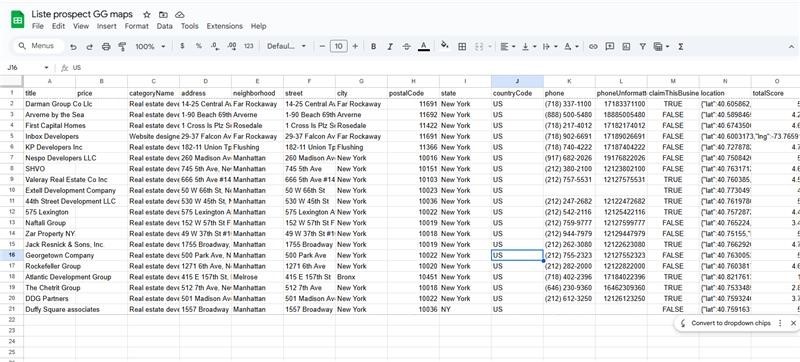
🎉That’s it! You now have a fully automated lead generation system — no manual searching required.